GitHub.
Why you still need it, how to back up your Claude Code projects - and never lose your work again.
What Is GitHub and Why Do Non-Coders Need It?
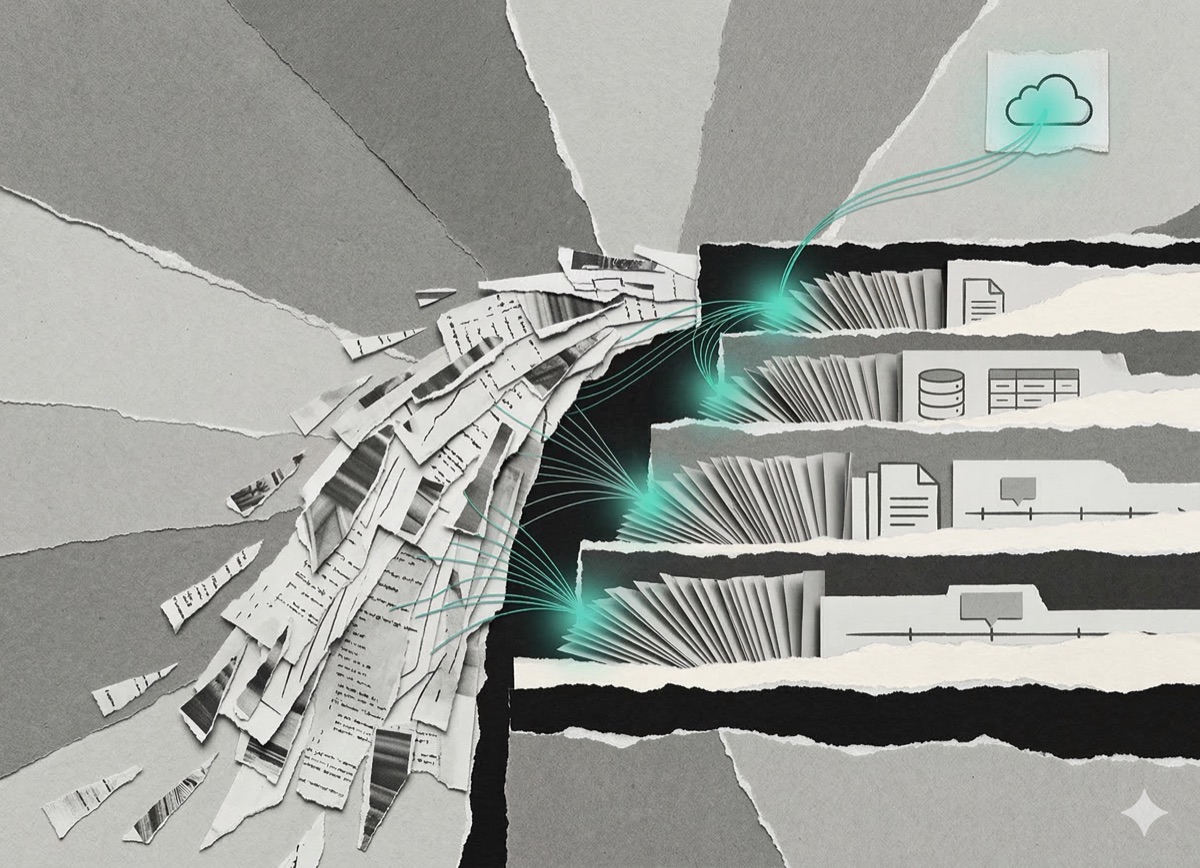
GitHub is a free cloud backup system for project files - specifically designed to remember every version you've ever saved. Think of it like Google Drive, but with a time machine built in. Every time you save your project to GitHub, it stores that exact version permanently. You can go back to any previous save, at any time, and see exactly what changed between them.
If you're building projects with Claude Code, GitHub is not optional. It's insurance.
Here's why: Claude Code saves everything into a folder on your desktop. That folder is fragile. One crashed laptop, one accidental delete, one wrong move - and hours of work are gone. GitHub fixes that in twenty minutes, and you never have to open a terminal to use it.
What Happens When You Don't Use GitHub?
Three hours of Claude building a client proposal tool. Files everywhere. Progress impossible to recreate from memory. Then the laptop freezes.
That spinning wheel is the moment most people realize they have no backup.
Without GitHub, your only recovery option when Claude breaks something is asking it to undo the change and hoping it remembers what it touched. With GitHub, you roll back to the last working version in two clicks. Thirty seconds. Done.
GitHub Glossary: Every Term You'll Actually Encounter
GitHub has its own language. Developers use these words constantly and never explain them. Here's the full dictionary - explained plainly.
Repository (repo): Your project's dedicated home on GitHub. One project = one repository. Like a Google Drive folder with superpowers.
Commit: A save point with a label. GitHub remembers every single commit forever and lets you return to any of them. You write a short note like "added contact page" so you remember what changed.
Push: Sending your latest commits from your computer up to GitHub. Like uploading a file to Google Drive. Until you push, your saves only exist locally.
Pull: Downloading the latest version from GitHub to your computer. Useful when working across multiple devices.
Branch: A parallel copy of your project for experimenting without touching the original. If the experiment works, you merge it back. If it doesn't, you delete the branch - the original is untouched.
Merge: Combining a branch back into your main project after a successful experiment.
Main (or Master): The primary, official version of your project. Everything else is a branch off this.
Clone: Downloading someone else's GitHub project to your own computer.
Fork: Making your own personal copy of someone else's repository. Changes you make don't affect the original.
Pull Request: A formal proposal to merge changes into a project. Mostly relevant in team settings - not something you'll use often working solo with Claude Code.
README: A text file at the top of every repository explaining what the project is and how to use it. Think of it as a cover page or handover document.
How Do You Set Up GitHub Without Using a Terminal?
Setting up GitHub with the desktop app takes twenty minutes and requires no command-line knowledge. Here's the exact process:
- Go to github.com and create a free account using your normal email.
- Go to desktop.github.com and download GitHub Desktop - the visual version of GitHub with buttons, folders, and no black screen. Install it like any other app.
- Open GitHub Desktop and sign in with the account you just created.
That's the setup done.
How Do You Connect Your Claude Code Project to GitHub?
Once GitHub Desktop is installed, connecting your existing Claude Code project folder takes under five minutes:
- Open GitHub Desktop.
- Click "Add an Existing Repository from your Hard Drive."
- Navigate to the folder where Claude has been building your project. Select it.
- GitHub Desktop will ask if you want to create a new repository for this folder. Click yes.
- Click "Publish Repository" at the top. Give it a name. Choose public (anyone can see it) or private (only you). Click Publish.
Your project now lives on GitHub - backed up, versioned, and accessible from any computer.
What Is the Daily GitHub Workflow After a Claude Session?
After every Claude Code session, this thirty-second process saves everything permanently:
- Open GitHub Desktop. You'll see every file Claude changed highlighted in green (added) or red (removed).
- Write a short commit message in the box at the bottom - something like "added contact form" or "fixed navigation menu."
- Click "Commit to Main."
- Click "Push Origin" at the top.
That session is saved forever. Takes less time than making a coffee.
How Do You Roll Back When Claude Breaks Something?
Claude will occasionally rewrite something that was working and introduce new problems. This is expected. GitHub makes recovery instant.
- Open GitHub Desktop.
- Click "History" in the left sidebar. Every commit you've ever made appears in order.
- Find the last commit where everything was working. Right-click it.
- Select "Revert."
GitHub Desktop undoes every change made after that point. Your project snaps back to exactly how it was at that save point. Then go back to Claude and try a different approach.
GitHub Setup Checklist for Claude Code Users
Use this to confirm everything is in place before your next session:
- GitHub account created → github.com (free)
- GitHub Desktop installed → desktop.github.com (free)
- Claude Code project folder connected as a repository
- First commit made with a clear message
- Repository published (public or private)
- Push habit established - once after every Claude session
Set this up once. Never worry about losing work again.
Frequently Asked Questions
Is GitHub free?
Yes. GitHub is free for personal projects, including unlimited private repositories.
Do I need to know how to code to use GitHub?
No. GitHub Desktop provides a fully visual interface - buttons, folders, and file previews. No terminal or command-line knowledge required.
What's the difference between GitHub and GitHub Desktop?
GitHub is the cloud platform where your projects are stored. GitHub Desktop is the visual app installed on your computer that lets you interact with GitHub without using the command line.
Can I use GitHub with Claude Code specifically?
Yes. Claude Code stores your project in a local folder on your desktop. GitHub Desktop can connect to that folder and back it up to the cloud in a few clicks.
What happens if I commit but forget to push?
Your save point exists locally on your computer but hasn't been sent to GitHub yet. Open GitHub Desktop and click "Push Origin" to sync it.
How often should I commit and push?
After every Claude Code session at minimum. For longer sessions, committing every time you reach a working milestone (e.g., "contact form works") gives you more rollback options.
If you found this useful, I send one like it every week.
Subscribe free → - Lucija Tomšić · brisk.vision